
Key takeaway
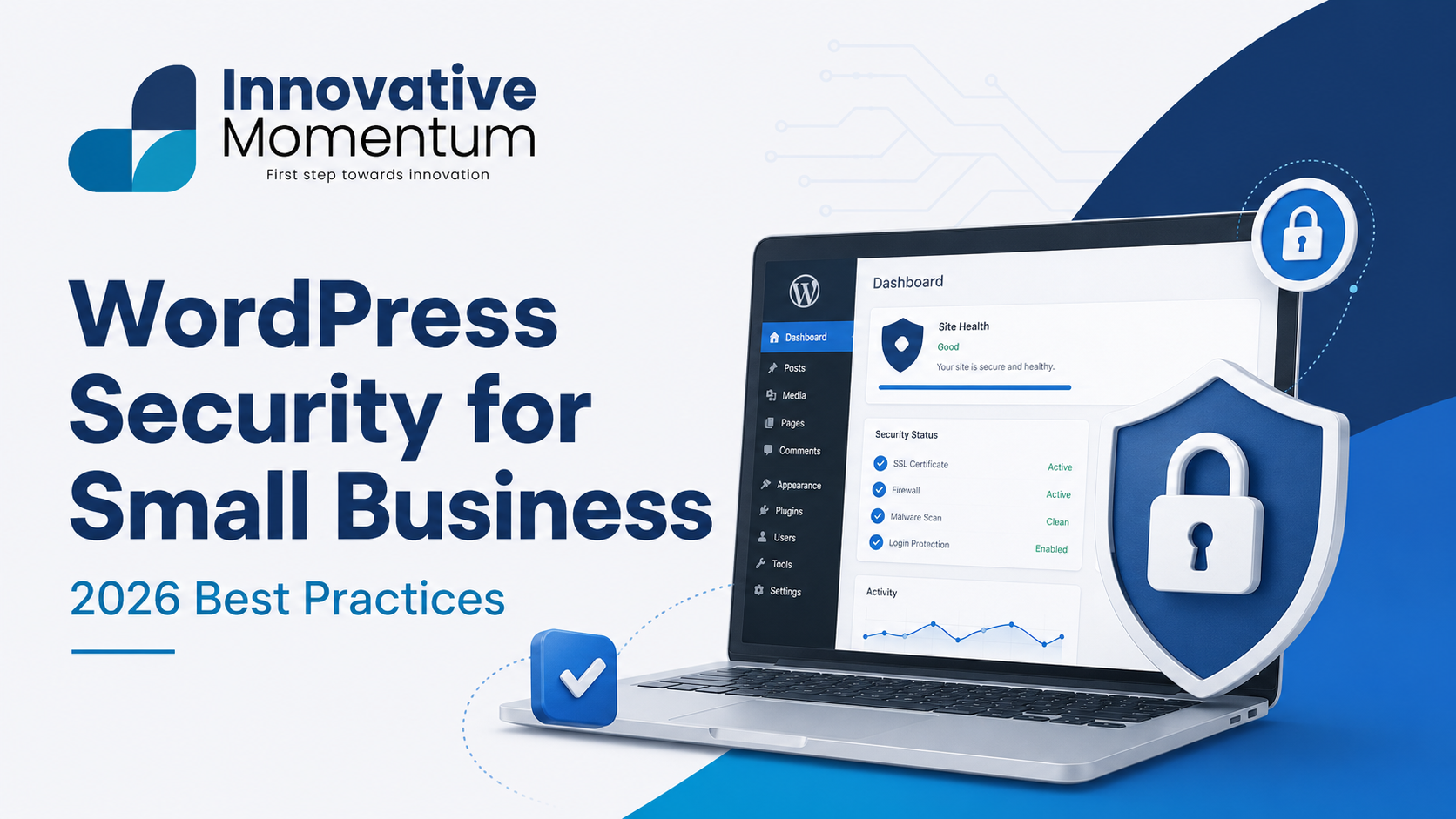
The four steps that prevent 95% of WordPress hacks: keep plugins and themes updated, use strong passwords with 2FA, install a security plugin, and run daily backups to an off-site location.
WordPress powers over 40% of all websites, which makes it the world’s most-targeted content management system. Hackers do not target your small business specifically — they run automated scripts that scan millions of sites for known vulnerabilities and attack any that do not have basic protections in place. A WordPress site with outdated plugins, weak passwords, or default settings can be compromised within hours of being found.
This guide covers the specific security measures every small business WordPress site should have in 2026, how to implement them without technical expertise, and what to do if your site is compromised.
Why WordPress Sites Get Hacked
The overwhelming majority of WordPress compromises happen through one of four vectors: outdated plugins or themes with known vulnerabilities, weak or reused passwords, a compromised hosting environment, and misconfigured file permissions. Sophisticated zero-day exploits targeting well-maintained, fully-updated sites are rare. Most small business compromises are entirely preventable with standard hygiene.
Updates: The Non-Negotiable Foundation
Keeping WordPress core, all plugins, and all themes updated is the single most impactful security measure you can take. When a security vulnerability is discovered in a popular plugin, its details are often publicly disclosed within days of a patch being released — meaning attackers know exactly which sites to target based on which version they are running. A site running an unpatched plugin with a known vulnerability is in a race between the site owner updating and an attacker exploiting it.
Innovative Momentum
Want to implement these strategies for your business?
We help businesses grow with digital marketing, SEO, and AI-ready content strategies.
For most small businesses, enabling automatic updates for WordPress core minor releases and security patches is appropriate. For plugin updates, review them manually or use a staging environment — some updates introduce compatibility issues that could break functionality. The risk of running outdated plugins outweighs the risk of a plugin update on a well-maintained site, but testing on staging first is best practice.
Remove deactivated plugins and themes. Inactive plugins still represent a security surface — their files remain on your server and can be exploited even when not active. If you are not using a plugin, delete it entirely.
Strong Passwords and Two-Factor Authentication
Every user account with admin-level access to your WordPress site must have a strong, unique password and two-factor authentication (2FA) enabled. Use a password manager to generate and store credentials — do not use the same password across multiple services. Administrator accounts are the highest-value target; a compromised admin account gives an attacker complete control of the site.
Two-factor authentication adds a second verification step — typically a time-based code from an app like Google Authenticator or Authy — that renders stolen passwords useless without physical access to the 2FA device. Plugins like WP 2FA or the built-in 2FA in security plugins like Wordfence make this easy to configure. Require 2FA for all admin and editor roles as a minimum.
Security Plugins
A good WordPress security plugin handles several tasks that would otherwise require manual configuration: firewall rules that block malicious traffic before it reaches WordPress, login protection (rate limiting and 2FA), malware scanning, and security activity logging. The main options for small businesses:
- Wordfence Security: Popular free tier with firewall, malware scanner, and login security. Real-time threat intelligence updates are delayed by 30 days on the free plan; the paid version gets them immediately. Good all-round choice for most small businesses.
- Sucuri Security: Free plugin with malware scanning, security activity auditing, and post-hack hardening tools. Sucuri’s premium product adds a website application firewall (WAF) at the DNS level — the WAF is its primary differentiator from Wordfence.
- iThemes Security Pro: Strong brute force protection and two-factor authentication. Renamed to Solid Security in recent versions.
Do not install multiple security plugins — they conflict with each other and can create performance and stability issues. Pick one and configure it properly.
Backups: Your Last Line of Defence
Even with all security measures in place, backups are essential. A reliable backup allows you to recover from a compromise, a failed update, or accidental deletion. Backup requirements for a small business WordPress site:
- Daily backups at minimum. For sites that change frequently (e-commerce, active blogs), consider more frequent backups.
- Off-site storage. Backups stored on the same server as your website can be deleted or encrypted in a compromise. Store backups in a separate location: Amazon S3, Google Cloud Storage, Dropbox, or Backblaze B2.
- Full backups (database + files). The database contains your content; the files contain your theme, plugins, and uploads. Both are needed for a complete restoration.
- Tested restores. A backup you have never tested may not work when you need it. Test a restore to a staging environment at least quarterly.
Plugins like UpdraftPlus (free) and WP Time Machine support automated off-site backup. Your hosting provider may also offer server-level backups — these are a supplement, not a substitute for your own backup system, since host-side backups can be unavailable or delayed when you need them most.
For broader site maintenance, our guide on WordPress website maintenance for small businesses covers the full maintenance schedule including security-adjacent tasks like uptime monitoring and performance optimization.
Hardening WordPress Configuration
Beyond plugins and updates, several configuration changes improve security without requiring ongoing maintenance:
- Change the default login URL: WordPress login defaults to /wp-login.php, which is the first URL targeted by brute force scripts. Moving it to a custom URL (e.g. /manage) reduces automated attack traffic significantly. Most security plugins offer this as a one-click option.
- Disable XML-RPC if not needed: XML-RPC is a remote access protocol that enables brute force attacks and DDoS via pingback amplification. Unless you use WordPress mobile apps or Jetpack, disable it.
- Set file permissions correctly: WordPress directories should be 755, WordPress files 644, and wp-config.php 440 or 400. Permissions that are too open (777 on files or directories) allow attackers to write malicious files.
- Keep PHP current: PHP 7.4 reached end-of-life in November 2022; PHP 8.0 in November 2023. Running end-of-life PHP versions means no security patches. Check your PHP version in WordPress admin (Tools → Site Health → Info) and update through your hosting control panel.
SSL and HTTPS
All traffic between visitors and your site should be encrypted with HTTPS. An SSL certificate encrypts data in transit, protects user information, prevents man-in-the-middle attacks, and is now a baseline expectation from both users and Google. Google has used HTTPS as a ranking signal since 2014, and browsers show “Not Secure” warnings for HTTP sites, which damages credibility.
Most managed WordPress hosts provide free SSL certificates via Let’s Encrypt, with automatic renewal. If your site is still on HTTP, this is the highest-priority security change to make. Our guide on technical SEO audits for small businesses covers SSL configuration as part of the broader technical health check.
What to Do If Your Site Is Compromised
Signs of compromise: unexpected admin users appearing, spam pages indexed in Google, visitor browsers triggering security warnings, site loading very slowly or redirecting to other sites, and host suspending the account for malware. If you suspect compromise:
- Take the site offline or put it in maintenance mode to prevent further visitor exposure.
- Scan for malware using your security plugin or a specialist tool like Sucuri SiteCheck.
- Restore from a clean backup that predates the compromise if one exists.
- Change all passwords: WordPress admin, FTP/SFTP, database, hosting control panel.
- Review admin user list and remove any unrecognised accounts.
- Update all plugins, themes, and WordPress core.
- Request a malware removal service (Sucuri, Wordfence Premium) if you cannot clean the site yourself.
For ongoing security and maintenance support, contact Innovative Momentum for managed WordPress services that include security monitoring and incident response.
Frequently Asked Questions
Do I need a security plugin if my host provides security?
Host-level security (firewalls, DDoS protection, server hardening) and WordPress-level security (application firewall, login protection, malware scanning) address different attack surfaces and are complementary, not redundant. Your host protects the server; a WordPress security plugin protects the application. Both are needed for a complete security posture.
How often should I back up my WordPress site?
At minimum, daily. For sites with daily content changes or active e-commerce, hourly or real-time backups are preferable. The right frequency is determined by how much data you can afford to lose — if your site generates revenue-critical activity throughout the day, a 24-hour backup gap is significant risk. Multiple backup destinations (hosting + cloud storage) provide redundancy.
Is WordPress inherently insecure?
WordPress core is actively maintained and generally secure. The security risks associated with WordPress stem from its ecosystem: the thousands of third-party plugins and themes of varying quality, the large installed base that makes it an attractive target, and the ease with which non-technical users can install potentially insecure extensions. A well-maintained WordPress installation with a minimal, vetted plugin set is as secure as most alternatives.
WordPress Login Security
The WordPress login page at /wp-login.php is the single most-targeted URL on any WordPress site. Automated scripts continuously attempt to guess login credentials using lists of common passwords and username variations (particularly “admin”, the default WordPress administrator username). Basic login security hardening reduces this risk significantly:
- Change the default admin username: If your WordPress administrator account is named “admin,” rename it. Over half of brute force scripts specifically target the “admin” username. Go to Users → All Users in WordPress admin, create a new administrator with a unique username, transfer content to the new account, and delete the “admin” account.
- Limit login attempts: Install a plugin (or use the login protection feature in Wordfence or Solid Security) to lock out IP addresses after 3-5 failed login attempts. This stops brute force scripts before they can cycle through thousands of password combinations.
- Two-factor authentication on all admin accounts: Even if a password is guessed or stolen, 2FA requires a physical device to complete login. This is the most impactful single security measure for admin account protection.
- Use application passwords for REST API access: WordPress 5.6+ includes application passwords for REST API authentication. Use these for integrations rather than your main admin password, so REST API access can be revoked independently of your admin credentials.
Security Activity Monitoring
Security events you cannot see are security events you cannot respond to. A security activity log records every significant action on your WordPress site: login attempts (successful and failed), user account changes, plugin and theme changes, file modifications, and settings changes. When a compromise occurs, the activity log is the primary forensic tool for understanding what happened, when it happened, and what was changed.
Wordfence and WP Activity Log both provide detailed security activity logging for WordPress. Review the log at least weekly and set up email alerts for high-priority events: failed logins exceeding your threshold, new administrator accounts created, or plugins deactivated. Anomalous patterns in the log — multiple failed logins from a specific IP, an administrator account change you did not make, or a plugin you did not install appearing active — are early indicators of a compromise or attempted compromise that can be addressed before damage occurs. Combine security monitoring with the regular maintenance schedule outlined in our guide on WordPress website maintenance.
Choosing Secure WordPress Hosting
Your hosting environment is the foundation of WordPress security. Shared hosting — where your site shares a server with hundreds of other sites — creates a risk that a compromise on another site on the same server could affect yours. Managed WordPress hosting mitigates this: providers like Kinsta, WP Engine, and Flywheel implement server-level firewalls, malware scanning, automatic WordPress updates, and site isolation that significantly reduce the hosting-environment risk vector. The cost difference between quality managed hosting and shared hosting (typically £15-50/month vs £3-8/month) is negligible compared to the cost of recovering from a security incident. Our guide on WordPress maintenance covers hosting selection as part of the overall site reliability strategy.
For ongoing technical health across your WordPress site including security, our technical SEO audit checklist covers the full set of checks to run regularly.

Keep reading
Related insights


No comments yet. Be the first to share your thoughts.