
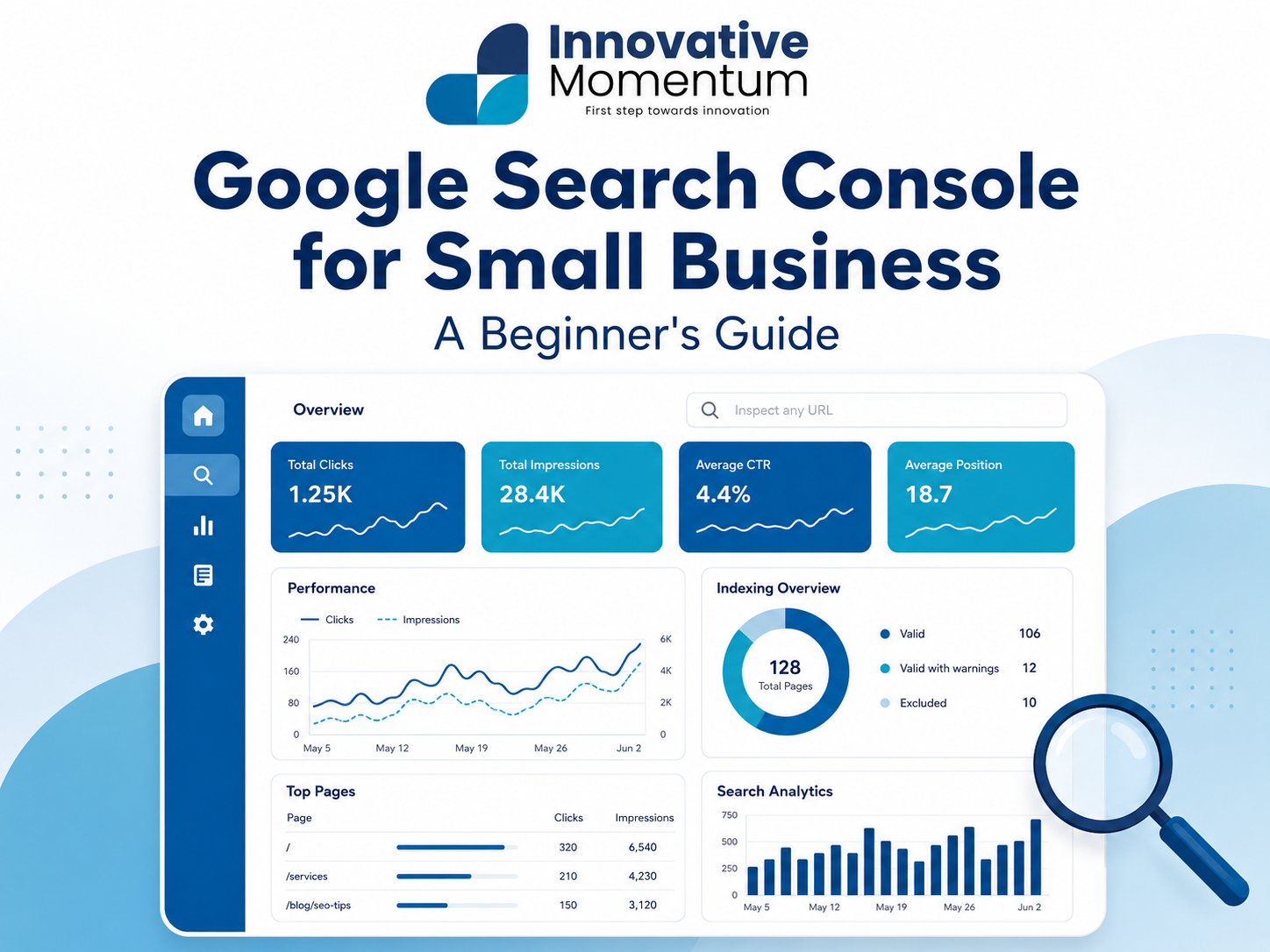
Key takeaway
GSC is free, from Google, and more accurate for organic search data than any third-party tool The Queries tab reveals which search terms are driving traffic you did not specifically target Pages in positions 4 to 10 with high impressions are the fastest ranking wins in your GSC data URL Inspection lets you request immediate re-crawl after updating a page Coverage report errors block indexing entirely and must be fixed before any other SEO work
Google Search Console is the only tool that shows you exactly which searches are bringing users to your website, how often your pages appear in Google results, and which technical issues Google has found when crawling your site. It is free, directly from Google, and more accurate for organic search data than any third-party tool. Yet most small business owners either have not set it up, or check it once a month without knowing which numbers to focus on.
This guide covers setup, the five reports that drive the most actionable insights, and the specific things to look for in each one. It also walks through three workflows that most site owners overlook entirely: using GSC for keyword research, running a focused monthly review, and connecting GSC to your WordPress plugins and GA4.
How to set up Google Search Console
- Go to search.google.com/search-console and sign in with the Google account associated with your business.
- Click “Add Property.” Choose Domain (recommended) or URL prefix. Domain verification is preferred as it tracks all subdomains and both HTTP/HTTPS automatically.
- Verify ownership via DNS record (preferred), HTML file upload, or Google Analytics/Google Tag Manager connection.
- Submit your sitemap: go to Sitemaps, enter your sitemap URL (typically yourdomain.com/sitemap.xml), and click Submit.
- Wait 48 to 72 hours for initial data to populate. Full historical comparison data builds over 28 days.
Connect Google Analytics 4 first: If you have not already installed GA4 on your site, do that before setting up GSC. Connecting the two properties gives you combined data — organic search sessions from GSC matched with actual on-site behavior from GA4 — in both tools.
The five reports that matter most
1. Performance Report (your organic traffic dashboard)
Location: Performance → Search Results
Innovative Momentum
Want to implement these strategies for your business?
We help businesses grow with digital marketing, SEO, and AI-ready content strategies.
This report shows total clicks (traffic from Google), impressions (how often your pages appeared in results), average CTR (click-through rate), and average position for any date range. The four most important things to check:
- Pages tab: which pages drive the most organic traffic. Your top 10 traffic pages should be actively maintained, kept updated, cross-linked from new content, and checked for rankings quarterly.
- Queries tab: which search terms bring users to your site. Look for high-impression, low-CTR queries (position 4 to 10 with under 5% CTR). These are pages that are almost ranking and need a targeted optimization push.
- Devices tab: if mobile traffic has a significantly lower CTR than desktop for the same queries, check your mobile layout and page speed.
- Compare date ranges: month-over-month and year-over-year comparisons show whether your organic traffic is growing, flat, or declining, and when changes happened.
2. URL Inspection Tool (check any specific page)
Location: URL Inspection (top search bar)
Enter any URL from your site to see whether Google has indexed it, when it was last crawled, what it looks like to Googlebot (the rendered page), and any indexing issues. Use this to check a new page after publishing, request indexing for a page you have just updated significantly, and debug why a specific page is not appearing in Google results.
3. Coverage Report (indexing health)
Location: Indexing → Pages
This report shows which pages are indexed, which are excluded, and why. When errors appear here, it often means something broke at the server or plugin level. Running a technical SEO audit alongside this report gives you a full picture of what needs fixing. The categories to watch:
4. Core Web Vitals Report
Location: Experience → Core Web Vitals
Shows how your pages perform on LCP, INP, and CLS based on real user data from Chrome. Pages are grouped as Good, Needs Improvement, or Poor. Click into any group to see which specific pages are affected, then use the URL Inspection tool or PageSpeed Insights to diagnose root causes.
5. Links Report (your backlink profile)
Location: Links
Shows your top linked pages (most external backlinks), top linking sites, and top linking text (anchor text). Use this to understand which pages are attracting the most links so you can replicate their format, identify your highest-authority referring domains, and check for spammy incoming links that may need disavowing.
Three high-value actions from GSC data
- Find quick-win pages: filter the Performance report to position 4 to 15 with over 500 impressions per month. These pages are close to ranking. Update the content, improve the title tag, add internal links. Many will move to page 1 within 60 days of optimization.
- Fix crawl errors before they compound: check the Coverage report monthly. A single 404 from a previously-ranking page can be the first sign of a broken redirect after a CMS update or URL change.
- Track the impact of content updates: after updating a post, use the Performance report to compare that page’s clicks and impressions before and after the update date. This is how you learn what improvements actually move the needle for your site.
Using GSC for keyword research: the underused feature
Most small business owners treat Google Search Console as a monitoring tool. It is also one of the best keyword research tools available, because unlike Ahrefs or Semrush, it shows you actual search terms from your own site rather than industry-wide estimates.
The workflow starts in Performance → Search Results. Instead of looking at all queries at once, filter by your top pages one at a time. Select a specific page using the “Pages” filter, then switch to the “Queries” tab. You will see every search term that brought someone to that page over the selected date range, along with impressions, clicks, and average position for each term.
Pay particular attention to terms with high impressions that you did not intentionally target. If a service page is getting 400 impressions per month for a query you never wrote content around, that is an expansion opportunity. You are already ranking for it, which means Google considers that page relevant. Adding a focused paragraph or FAQ answer targeting that specific query can push the page higher for that term without starting from zero.
The brand-versus-non-brand split is equally useful. Use the Query filter to exclude searches containing your business name. What remains is your non-brand organic performance: the traffic driven entirely by content quality and SEO, not by people who already know you exist. This number is your real SEO baseline. If 90% of your clicks come from branded queries, your content is not yet reaching new audiences.
After publishing a new page, use the URL Inspection tool to check when Google last crawled it and what the rendered version looks like. If the page has been live for three weeks with no impressions at all, that is worth investigating. It may have an accidental noindex tag, a canonical pointing elsewhere, or a rendering issue. Using the on-page SEO checklist alongside URL Inspection catches most of these before they cost you weeks of ranking time.
A 15-minute monthly GSC review: what to check and in what order
The reason most business owners do not review GSC regularly is that they open it without a clear sequence and end up clicking around without a clear takeaway. The fix is a repeatable order. Run through these five steps once a month and you will catch most issues before they compound.
“Google Search Console is the only source of truth for what your site is doing in search. Every other SEO tool estimates from external data. GSC has the actual numbers.”
- Check the Coverage report for new errors. Look at the trend line. A sudden spike in errors, say 12 pages showing errors this month versus 2 last month, usually means a plugin update or URL structure change broke something. Click through to see which pages are affected and what type of error is showing. Run this check before anything else because errors are the only issue that actively prevents ranking.
- Compare Performance: current 90 days versus prior 90 days. GSC makes this easy with the date comparison feature. Is total click count up or down? If down more than 10%, filter by Pages to find which specific URLs lost the most traffic. That narrows the investigation from “something dropped” to “this specific page dropped from position 6 to position 14.”
- Check the Core Web Vitals report. If any pages moved from “Needs Improvement” to “Poor” since last month, find them and investigate before the ranking impact shows up. Core Web Vitals are a ranking factor, and pages in the “Poor” bucket can lose positions compared to faster competitors.
- Look for quick-win queries. Filter Performance to show queries where average position is between 4 and 15, and impressions are over 200 per month. These pages are within striking distance of page 1. A focused content improvement, a stronger title tag, or 3 to 4 new internal links pointing at the page can move it up within 60 days.
- Check Manual Actions. This is rare for legitimate sites, but it takes 10 seconds to confirm. A manual action means a Google employee has flagged your site for a policy violation. Catching it early makes recovery faster.
The entire review takes 15 minutes once you know the sequence. The value is not in any single insight but in the compounding effect of catching small issues before they turn into large ranking drops.
GSC for WordPress: connecting the dots with Rank Math and Yoast
WordPress users have a practical advantage with GSC: both major SEO plugins can pull GSC data directly into the WordPress editor, so you do not have to switch between tools to act on what you find.
Rank Math’s GSC integration (set up under Rank Math → General Settings → Search Console) shows impression and click data alongside your posts in the post list and post editor. While editing a post, you can see whether it is getting impressions but low clicks (which points to a title or meta description issue) or whether it is sitting at position 12 (which points to content depth). Yoast SEO Premium offers a similar integration through its Wincher keyword tracking connection, which surfaces ranking data inside the editor. Either plugin removes the step of cross-referencing GSC manually while you write.
The GA4-GSC connection is the most powerful free analytics setup available for small business sites. In Google Analytics 4, go to Admin → Property → Product Links → Search Console. Once linked, a combined report appears under Acquisition → Search Console → Queries. This report shows GSC clicks alongside GA4 behavior data: bounce rate, time on page, and conversions. You can see, for example, that a query sending 200 clicks per month has a 90% bounce rate, which tells you the page is ranking for the right term but not delivering the right content when people arrive.
For teams that want to go further, Google Looker Studio (free) can pull from both GA4 and GSC into a single custom dashboard. This is useful when you want to track multiple sites or report to a client without sending them raw GSC access.
Frequently asked questions
How often should I check Google Search Console?
Set up email alerts for critical issues (crawl errors, manual actions) so you are notified immediately. Review the Performance report weekly to track traffic trends. Do a full review of Coverage, Core Web Vitals, and Links monthly.
Why does GSC show different traffic numbers than Google Analytics?
GSC reports clicks from Google Search. GA4 reports sessions, which can differ because one user may trigger multiple clicks, GA4 may filter bot traffic differently, and some users may have ad blockers that prevent GA4 from recording their session. Both are accurate. They measure slightly different things. Use GSC for keyword and ranking data; use GA4 for understanding user behavior after they arrive.
My site is brand new and GSC shows no data. Is that normal?
Yes. Field data in GSC (the kind used for Core Web Vitals) takes 28 days to accumulate after your first real user visits. Impression data usually appears within a few days of Google indexing your pages. If you have no impressions at all after two weeks, check that your sitemap is submitted and that your key pages are indexed using the URL Inspection tool. A common cause is a leftover noindex setting from development or a sitemap URL that was entered incorrectly during setup.
Can I use GSC to see what my competitors are ranking for?
No. GSC only shows data for your own verified properties. For competitor keyword research, tools like Ahrefs, Semrush, or the free Google Keyword Planner cover that gap. The closest GSC equivalent is looking at the queries where you have impressions but low position, then comparing those against what you know about your competitors’ content. That requires inference rather than direct data, which is why third-party tools earn their subscription cost for competitive analysis specifically.
What should I do if I see a sudden drop in impressions?
First check the Coverage report for new errors. Then check whether the drop aligns with a known Google algorithm update (the SEO community typically tracks these publicly within 24 to 48 hours of rollout). Filter the Performance report by Pages to identify which specific URLs lost impressions. If it is a single page, use URL Inspection to check its current indexed state. If it is site-wide, the cause is more likely algorithmic or a technical change such as a sitemap error or robots.txt modification.
If you need help interpreting your GSC data or building an SEO strategy around what you find, contact Innovative Momentum. We include GSC setup and a baseline performance audit with every site we build, and we run ongoing monthly reviews for clients who want consistent growth from organic search.

Keep reading
Related insights
No comments yet. Be the first to share your thoughts.