
Key takeaway
Outdated plugins are the leading cause of WordPress hacks — update weekly, not monthly Automated daily backups with offsite storage are non-negotiable for any live business website Test core, theme, and plugin updates on a staging site before applying to production Broken links hurt both user experience and crawl efficiency — audit at least monthly Disabling unused plugins reduces your attack surface and improves page load time
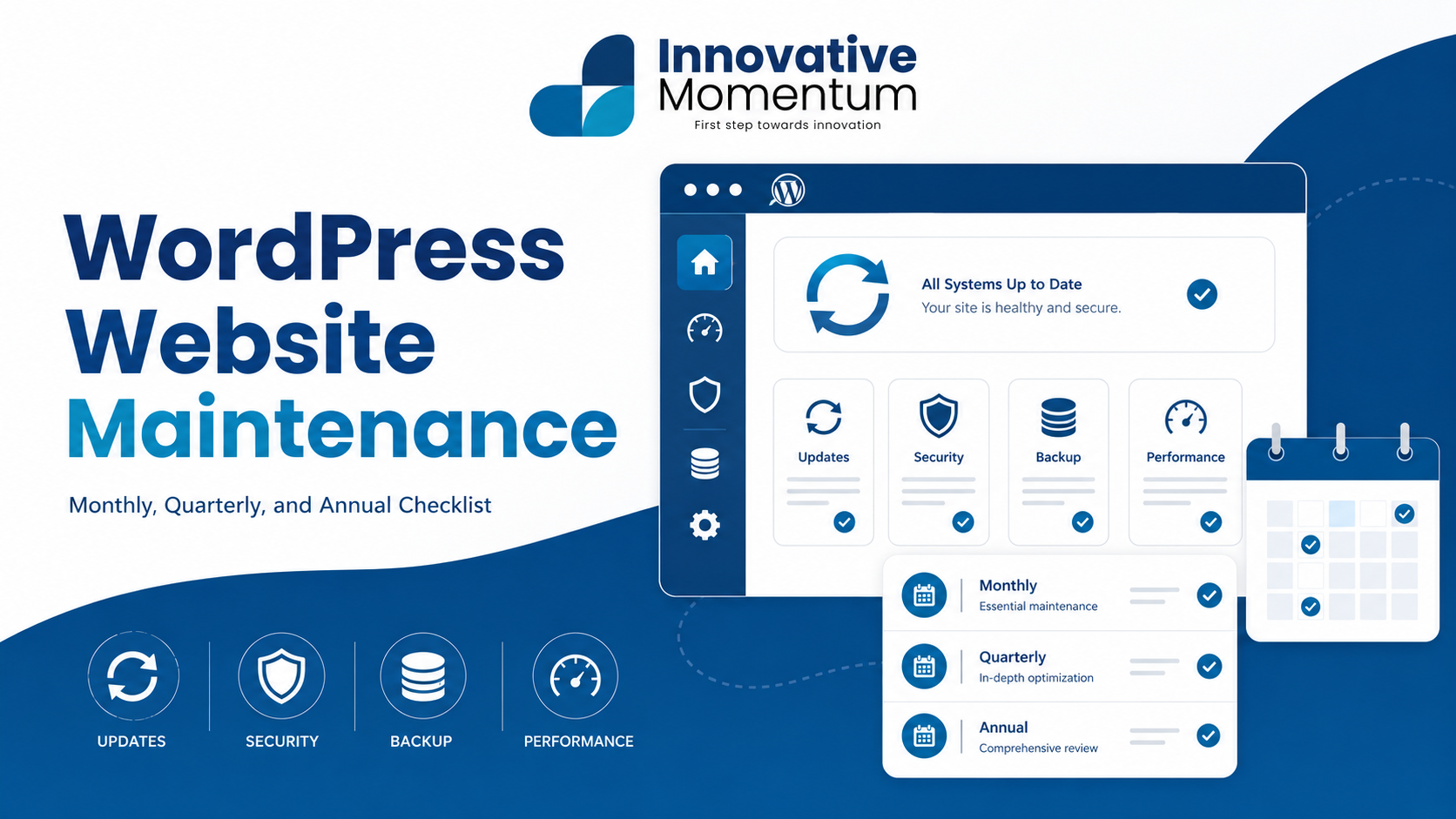
WordPress website maintenance: what your site needs monthly, quarterly, and annually
A plain-language maintenance schedule for small business owners, so you stop losing leads to broken forms, slow pages, and exploited plugins.
WordPress powers roughly 43 percent of every website on the internet as of 2025. That share exists because WordPress is flexible, extensible, and backed by an enormous ecosystem of themes, plugins, and developers. But that flexibility comes with a maintenance obligation that hosted site builders like Squarespace or Wix simply do not have. When you own a WordPress site, you own the stack: the core software, the plugins that extend it, the theme that renders it, and the hosting environment that runs it.
An unmanaged WordPress site accumulates risk quietly. Outdated plugins get exploited before you notice. Database bloat compounds until page load times tip past two seconds and your Google rankings slide. An expired SSL certificate turns every visitor’s browser into an adversary. Abandoned blog posts that once ranked start losing traffic to fresher, better-maintained pages. Most small business owners discover these problems reactively, after a site goes down or a client calls to say they can’t submit a form. This guide turns that reactive scramble into a predictable, documented routine organized by how often each task genuinely needs to happen.
Innovative Momentum
Want to implement these strategies for your business?
We help businesses grow with digital marketing, SEO, and AI-ready content strategies.
Monthly maintenance tasks
These six tasks take under an hour combined and address the most common sources of quiet site failure. Do them on the same day each month so nothing slips.
Quarterly maintenance tasks
These tasks take more time but catch the slower-burning problems: backup integrity, broken links, image weight, and content freshness. Block two hours per quarter and work through the list in a single session.
Annual maintenance tasks
Once a year, go deeper. These are not tasks that fit neatly into a checklist row because each one involves judgment, context, and decisions that ripple across your site’s structure and strategy.
The three WordPress maintenance emergencies and how to respond
Even a well-maintained site can encounter acute problems. Knowing the first three steps before a crisis starts is the difference between a 20-minute fix and a 4-hour panic.
The majority of WordPress site hacks exploit outdated plugins, not WordPress core itself. A 2024 Wordfence analysis found that 97 percent of successful breaches came through vulnerabilities in plugins and themes that had patches available but had not been applied. Updating plugins promptly is the single highest-impact security action for any WordPress site.
Wordfence Annual WordPress Security Report, 2024
DIY vs. managed WordPress maintenance: when to hand it off
There is no universal answer here. Both paths are reasonable depending on your situation, and the honest factors that determine which one fits you are not about technical sophistication so much as time and risk tolerance.
DIY maintenance makes sense when: someone on your team can commit 2 to 3 hours per month without it slipping; you or they understand what a plugin conflict looks like and how to isolate it; and your site is relatively contained, say under 50 pages, with a stable set of plugins. This profile fits many service businesses in their first few years online.
Managed maintenance starts making sense when: your site is a meaningful lead-generation channel and downtime has a direct revenue cost; you have had a security incident or unexplained outage before; or you simply cannot guarantee that the monthly tasks will happen reliably because your team’s priorities always win. The question is not whether you could do it yourself, but whether it will consistently get done.
Typical managed WordPress maintenance pricing breaks down roughly like this: basic plans at $50 to $150 per month cover updates, automated backups, and uptime monitoring. Comprehensive plans at $150 to $300 per month add performance optimization, active security monitoring, and often a small monthly content update allowance. For context on how these figures compare to the broader cost of keeping a site competitive, it helps to understand what small businesses typically spend on SEO at different stages of growth.
WordPress maintenance plugins worth having
You do not need a plugin for everything. This list is limited to tools that address a genuine gap and have strong track records.
Frequently asked questions
-
How do I know if my WordPress site has been hacked?
The signs are sometimes obvious and sometimes invisible. Visible signs include your site showing spam content, visitors being redirected to an unrelated site, or Google displaying a “This site may be hacked” label in search results. Less obvious signs include a Google Search Console manual action notification under Security and Manual Actions, unfamiliar admin accounts in WP Admin under Users, or your host’s malware scanner sending an alert. If you suspect a compromise and cannot access WP Admin, your host’s support team can usually pull an access log that shows when unauthorized requests occurred.
-
Is it safe to auto-update WordPress plugins?
For most established plugins from reputable developers with consistent release histories, automatic updates are reasonably safe and their security benefit outweighs the small risk of a compatibility issue. The exceptions are plugins with large codebases or complex database interactions, such as membership plugins, e-commerce plugins, or page builders, where a major version update can change database schema or output structure in ways that break other parts of the site. For those, review the changelog before any major version update and never auto-update on a production site without a recent backup in place. WordPress has allowed per-plugin auto-update settings in WP Admin since version 5.5; use that granularity rather than applying the same policy to every plugin.
-
Do I need a separate staging environment?
Any site that generates leads or revenue should have one. A staging environment is a private copy of your live site where you can test plugin and theme updates before applying them to production. Most managed WordPress hosts, including Kinsta, WP Engine, and Cloudways, include one-click staging environment creation at no additional cost. If your current host does not offer staging, that alone is a reasonable argument for switching. The Health Check and Troubleshooting plugin covers lightweight conflict diagnosis without a staging environment, but it is not a substitute for testing database migrations or major version updates safely out of view of visitors.
Need help keeping your WordPress site in shape?
Innovative Momentum offers WordPress maintenance, performance tuning, and SEO services for small businesses. If you would rather spend your time on your business than on plugin updates and backup audits, we can take the maintenance routine off your plate entirely.
Where AI tools fit into WordPress maintenance
Security scanning is the first area where AI has made a real difference. Wordfence Intelligence, which is Wordfence’s cloud threat intelligence layer, uses machine learning to identify new malware signatures and attack patterns faster than traditional signature databases. This means sites running Wordfence are protected against new exploit patterns within hours of detection across the network, not days. For a small business site owner who cannot monitor threat feeds manually, AI-backed security scanning is the most practical benefit in the current plugin options available.
Content maintenance is the second area. Every 12 to 18 months, high-traffic blog posts need refreshing: statistics go stale, product recommendations change, and competitors publish newer versions. AI writing tools make this refresh much faster. The workflow is straightforward: export the post from WordPress, paste it into an AI tool with the instruction “update the statistics in this article to 2026 figures and identify any sections that are outdated,” review the AI’s suggestions, and update. A 1,500-word post that previously took 90 minutes to refresh can take 20 to 30 minutes with AI-assisted drafting. The judgment calls (what to keep, what to cut, what to add) still require a human.
AI tools can also help diagnose plugin conflicts faster. When two plugins conflict and your site shows a white screen or a PHP error, you can paste the error message directly into ChatGPT or Claude and typically get: the likely cause, which plugin is responsible, and the recommended fix. This is not foolproof, but for common WordPress errors it dramatically shortens the diagnostic step from “search Stack Overflow for an hour” to “get a plausible answer in 30 seconds, then verify.”
One area where AI tools should not be trusted for WordPress maintenance is security decisions. If an AI tool tells you a specific plugin is safe or that a particular file change is benign, verify independently. AI models have training cutoffs and cannot know about vulnerabilities discovered after their knowledge cutoff. For security decisions, use Wordfence’s vulnerability scanner, WPScan’s vulnerability database, or the WordPress.org plugin page’s security report. AI is useful for explaining what a vulnerability means once you have found it, not for discovering whether one exists.

Keep reading
Related insights

No comments yet. Be the first to share your thoughts.