
Key takeaway
LCP (Largest Contentful Paint) is the most commonly improvable Core Web Vitals metric Images are the leading cause of poor LCP — compress, resize, and serve WebP or AVIF CLS is usually caused by images without dimension attributes or late-loading ads GSC uses real user data for Core Web Vitals; PageSpeed Insights uses lab data — use both Core Web Vitals are a tiebreaker, not a primary ranking factor — fix content quality and links first
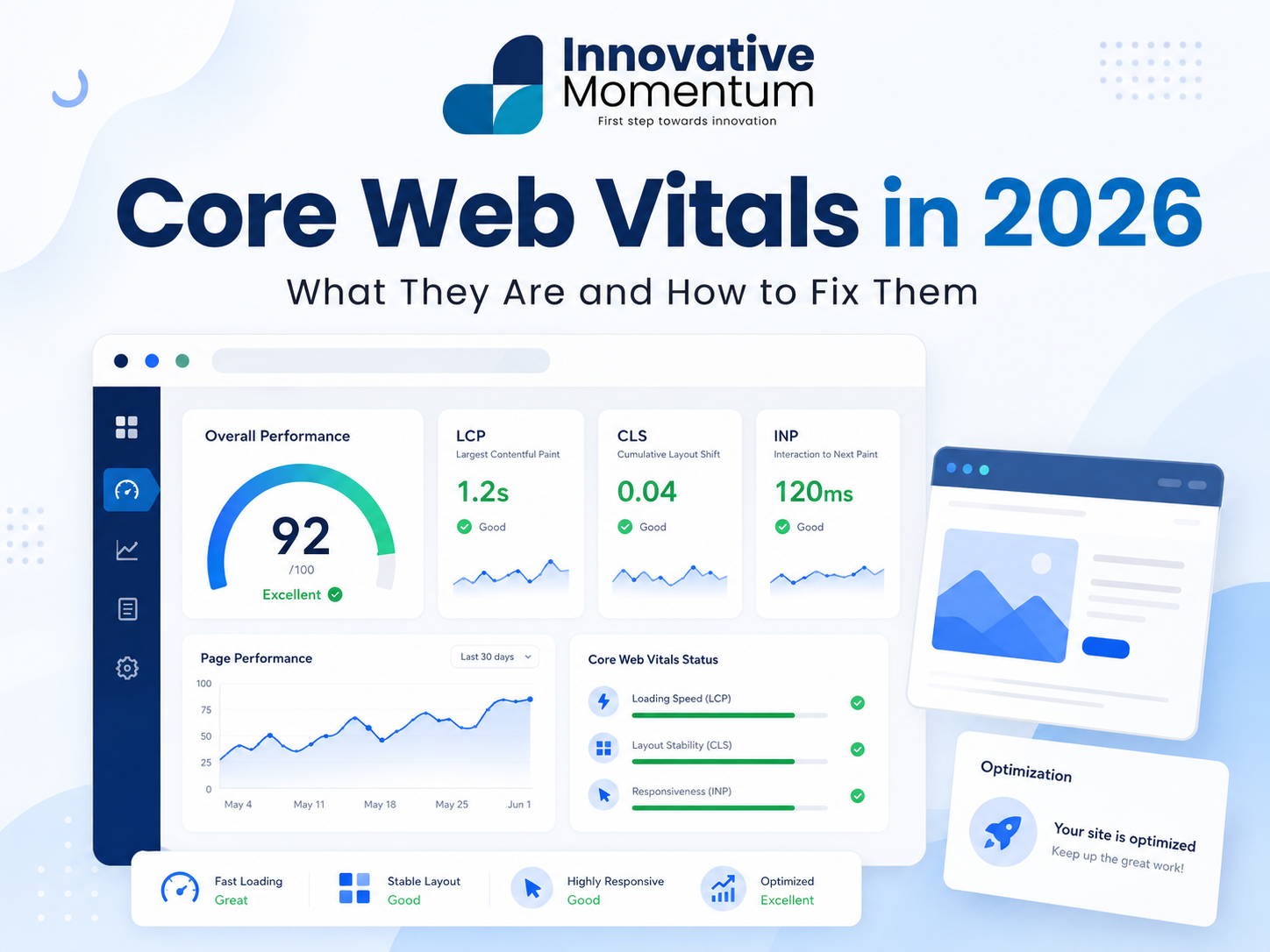
Core Web Vitals became a Google ranking factor in 2021. Since then, three metrics have defined what “fast” means in Google’s eyes: LCP (how quickly the main content loads), INP (how quickly the page responds to user input), and CLS (how stable the layout is as the page loads). In 2024, Google replaced FID with INP — a harder metric to pass that measures real interaction responsiveness rather than just first-click latency.
For small businesses, passing Core Web Vitals is not just a technical checkbox. Pages that hit “Good” thresholds on all three metrics consistently outrank equivalent pages that fail them in competitive queries. This guide explains what each metric measures, how to check your scores, and the specific fixes that move the needle.
The three Core Web Vitals explained
Important: FID (First Input Delay) was retired in September 2024 and replaced by INP. Any SEO tool or article that still references FID as a Core Web Vital is out of date. INP is significantly harder to pass than FID — it measures the worst interaction on the page, not just the first one.
How to check your Core Web Vitals
Use these tools, in this order:
Innovative Momentum
Want to implement these strategies for your business?
We help businesses grow with digital marketing, SEO, and AI-ready content strategies.
- Google Search Console, Core Web Vitals report: Shows real-user data (field data) from Chrome users who visited your site. This is the data Google uses for ranking. It takes 28 days to accumulate, so new sites will not have data immediately.
- Google PageSpeed Insights: Run your URL at pagespeed.web.dev. Shows both field data (if available) and lab data. The lab data is a simulated test — useful for debugging but not the ranking signal.
- Chrome DevTools, Performance tab: For developers who need to understand exactly which elements are causing LCP or CLS issues.
How to fix each metric
Fixing LCP (Largest Contentful Paint)
The LCP element is almost always your hero image or the above-fold heading. The fastest wins:
- Preload your LCP image: Add
<link rel="preload" as="image" href="hero.webp">to your page head. This tells the browser to fetch the hero image before it finishes parsing the full HTML. - Serve images in WebP or AVIF: WebP is typically 25–35% smaller than JPEG at equivalent quality. For WordPress, WP Rocket or Imagify handle this automatically.
- Use a CDN: A content delivery network serves images from a server geographically close to the user. Cloudflare’s free tier is sufficient for most small business sites.
- Switch to faster hosting: Shared hosting with slow Time to First Byte (TTFB over 600ms) is the most common cause of failing LCP on WordPress sites. Managed WordPress hosting (Kinsta, WP Engine) consistently hits TTFB under 200ms.
Fixing INP (Interaction to Next Paint)
INP failures are almost always caused by JavaScript that blocks the main thread when a user interacts with the page. The primary culprits:
- Third-party scripts (analytics, chat widgets, marketing tools) that run heavy calculations on click events
- WordPress page builders that add excessive JavaScript for animation triggers
- Large event listeners that run synchronously on the main thread
The fix is usually: defer non-critical third-party scripts, disable unnecessary page builder JavaScript features, and use a performance plugin (WP Rocket, Perfmatters) to control script loading order.
Fixing CLS (Cumulative Layout Shift)
CLS is caused by elements that load after the initial render and push other content around. Common causes and fixes:
WordPress-specific CWV fixes: the four-step baseline
Most WordPress sites fail Core Web Vitals for the same predictable reasons. Hosting, caching, images, and missing image dimensions account for the vast majority of failures. Work through these four steps in order of impact before attempting anything more complex. If you are doing a broader technical SEO audit, run this checklist first — it is the fastest path from failing to Good on most small business sites.
Step 1: Move to managed WordPress hosting. Shared hosting typically delivers Time to First Byte (TTFB) between 800ms and 2000ms. On managed WordPress infrastructure, Kinsta, WP Engine, and Cloudways consistently hit under 200ms TTFB. That single change fixes LCP on the majority of shared-hosting WordPress sites without touching a single line of code. TTFB is measured before the browser has rendered anything, so a slow server poisons every other metric downstream.
Step 2: Install WP Rocket ($59/year). One plugin handles page caching, GZIP compression, image lazy loading, CSS and JS minification, and database optimization. The default settings are well-calibrated for small business sites — most owners never need to touch the advanced tabs. WP Rocket also handles the preload LCP image feature automatically for most theme configurations, which directly cuts LCP by 300–600ms on image-heavy homepages.
Step 3: Compress and convert images to WebP. ShortPixel ($9.99/month or pay-per-credit) bulk-converts existing images in your media library and auto-converts new uploads on the fly. The typical result is a 40–60% reduction in file size with no visible quality difference at normal screen sizes. A 400KB hero JPEG that becomes a 160KB WebP shaves real seconds off LCP on mobile connections. This compounds with the CDN in Step 1 — smaller files travel faster even over good connections.
Step 4: Set width and height on every img tag. This is the primary CLS fix. When the browser knows an image’s dimensions before it loads, it reserves the correct space in the layout. No reserved space means the image pops in and pushes everything below it down, which the browser counts as a layout shift. In WordPress, the block editor handles this automatically for images added through the media library. For older images inserted without dimensions, both Yoast SEO and RankMath flag missing width/height attributes in their site health reports.
The table below covers the full toolkit, including cost and what each tool addresses. Understanding how much SEO investment makes sense for your business helps put these costs in context — the combined annual cost of this stack is under $150.
Understanding CWV field data vs. lab data: why they disagree
Run a URL through PageSpeed Insights and you see two different pictures. The score at the top — the 0 to 100 number — comes from lab data. The “Discover what your real users are experiencing” section below it comes from field data. They measure fundamentally different things, and confusing them leads to chasing the wrong number.
Lab data is a simulation. Google runs your URL on a throttled mid-tier Android device over a simulated slow 4G connection in a data center, with no cached assets and no browser extensions. It is designed to be reproducible and consistent, not to reflect your actual visitors. That reproducibility is what makes it useful for debugging — run it before and after a change and the delta is real.
Field data is real Chrome user measurements. Every Chrome user who visits your site and has the optional telemetry enabled contributes timing data to Google’s Chrome User Experience Report (CrUX). PageSpeed Insights and Google Search Console both pull from this dataset. It reflects your actual visitors on their actual devices and connections. This is the data Google uses as a ranking signal. Not the lab score.
The most common reason they disagree: your regular visitors are mostly on desktop computers with fiber or cable connections, so field data shows Good scores across the board. But lab data tests a throttled mobile simulation, and on that simulation your LCP is 4.2 seconds. Both scores are accurate — they just measure different things. For SEO purposes, the field data numbers in Google Search Console are what matter for ranking. The lab score is the tool you use to find and fix problems after a regression.
One practical implication: if your GSC Core Web Vitals report shows Good on all metrics but your PageSpeed lab score is 45, you do not have a ranking problem. You may have a slow experience for some mobile users on poor connections, which is worth addressing separately. But panicking about a low lab score when field data is Green is a common mistake that wastes significant time.
How to set up CWV monitoring so you catch regressions
Most small businesses check their CWV score once, make fixes, and then forget about it. Six months later a plugin update quietly breaks INP and no one notices until rankings drop. A lightweight monitoring routine prevents this.
First, enable Google Search Console email alerts for CWV. Go to Settings, then Email Preferences, and turn on “Significant changes” alerts. Google will email you when pages move from Good to Needs Improvement or from Needs Improvement to Poor. This catches regressions without requiring any manual checking.
Second, run PageSpeed Insights on your homepage and top three traffic pages every time you install a new plugin or change your theme. Plugin conflicts are the most common cause of sudden CWV regressions on WordPress sites. A new plugin that adds a chat widget or marketing script to every page can add 200–400ms of INP latency overnight. Checking immediately after installation tells you exactly which change caused the regression while it is still fresh.
Third, add a bookmark for your GSC Core Web Vitals report and check it as part of a monthly 15-minute site health review alongside uptime, Search Console errors, and Google Analytics traffic. Fifteen minutes once a month catches the vast majority of issues before they compound.
Most WordPress CWV failures are not from the theme — they are from plugins. The average WordPress site installs 20 or more plugins. Each one can add JavaScript to every page load. A quarterly plugin audit (disabling unused plugins) regularly moves sites from Needs Improvement to Good without any code changes.
The plugin audit process takes about 20 minutes. Go to your WordPress admin, list all active plugins, and deactivate any you have not used in three months. For each one you are unsure about, check what it does and whether the feature is still needed. Many WordPress sites accumulate plugins from past projects — a popup builder from a promotion that ended two years ago, a backup plugin that was replaced by a hosting-level backup, a slider plugin left active after the homepage was redesigned. Each deactivated plugin is one less JavaScript file on every page load.
If you want a more structured approach to performance issues, a full technical SEO audit covers CWV alongside crawlability, indexation, and structured data in a single review.
Frequently asked questions
Do Core Web Vitals directly affect my rankings?
Yes, but they are one of many ranking factors. Passing Core Web Vitals is a tiebreaker in competitive queries — when two pages are roughly equivalent in relevance and authority, the faster one ranks higher. Failing Core Web Vitals significantly in a competitive niche is a meaningful ranking suppressor. For low-competition queries, a failing score may have minimal visible impact.
My PageSpeed Insights score is low but my site feels fast — which is right?
PageSpeed Insights lab data simulates a mid-tier mobile device on a throttled 4G connection. Your site may feel fast on a desktop with a fiber connection while still failing mobile CWV. Google uses field data (real user measurements from Chrome) for ranking — check the field data section of PageSpeed Insights, or the GSC Core Web Vitals report, for the ranking-relevant numbers.
What is the fastest way to improve CWV on a WordPress site?
In order: (1) switch to managed WordPress hosting if currently on shared hosting, (2) install WP Rocket or LiteSpeed Cache with default performance settings, (3) compress and convert all images to WebP, (4) add width/height to all image tags. These four changes typically move a failing WordPress site to “Needs Improvement” or “Good” without any code changes.
Do Core Web Vitals affect all industries equally?
The ranking signal applies universally — Google measures CWV for every site in every vertical. But the competitive impact varies considerably depending on who you are competing with. For low-competition local queries (a plumber in a small city, a dentist in a suburb), a failing CWV score rarely costs rankings because most competitors are also failing. For national-scale competitive queries where every result on page one is a well-resourced site with a dedicated SEO team, CWV becomes a meaningful tiebreaker. Knowing your competition’s CWV scores is part of understanding whether fixing them will visibly move rankings for your specific queries.
My site passes on desktop but fails on mobile — which matters more?
Mobile. Google uses mobile-first indexing, which means it crawls and evaluates the mobile version of your site when determining rankings. A desktop pass with a mobile fail means the ranking-relevant CWV is Poor, regardless of how good the desktop experience is. Prioritize mobile fixes. The most common reason for a desktop pass and mobile fail is image size — images sized for large screens take much longer to load on a mobile connection, pushing LCP well above the 2.5-second threshold. Responsive image sizing (the WordPress srcset attribute) serves appropriately sized images to each device and often resolves this gap without separate mobile-specific fixes.
If you need help diagnosing and fixing Core Web Vitals issues on your site, contact Innovative Momentum — performance optimization is built into every WordPress site we deliver.

Keep reading
Related insights


No comments yet. Be the first to share your thoughts.