
Key takeaway
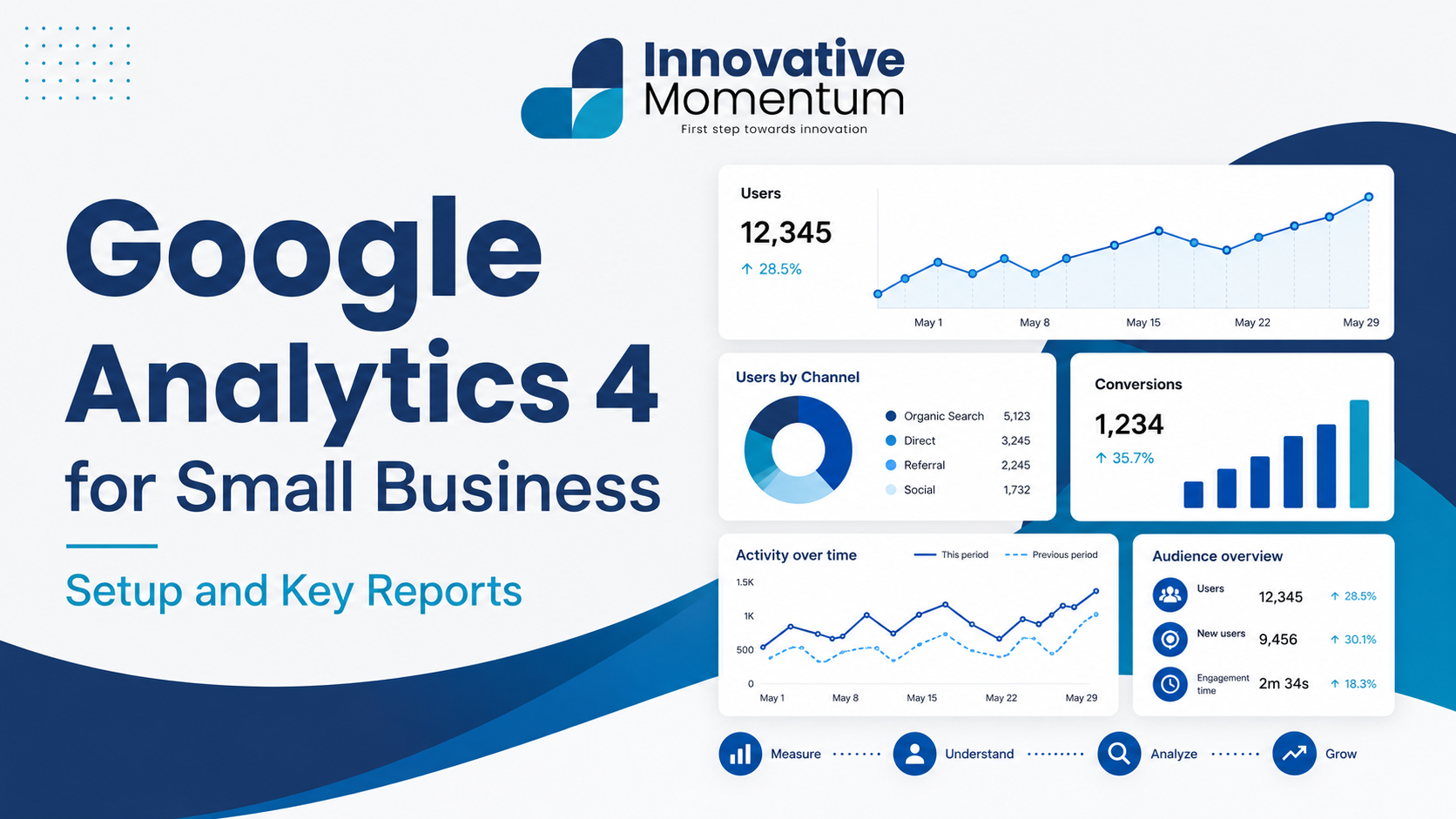
The three GA4 reports every small business owner needs weekly: Traffic Acquisition (where visitors come from), Engagement (what they do), and Conversions (what actions matter to your business).
Google Analytics 4 replaced Universal Analytics as the default Google Analytics product in July 2023, when Universal Analytics stopped processing new data. If your small business was using Universal Analytics and has not migrated to GA4, you have no Google Analytics data for the past two years. GA4 is not just an update — it is a fundamentally different analytics platform with a new data model, different reporting structure, and new concepts that require learning even for experienced UA users.
This guide covers how to set up GA4 correctly for a small business, which reports matter most, how to track conversions, and the key differences from Universal Analytics that affect how you interpret data.
GA4 vs Universal Analytics: What Changed
Universal Analytics measured sessions and pageviews as its primary units. GA4 measures events — every interaction on your site is recorded as an event with parameters. A pageview is now an event (page_view). A button click is an event. A scroll to 90% of the page is an event. A video play is an event. This event-based model is more flexible and captures user behavior that pageview-based tracking missed, but it requires rethinking how you configure goals and read reports.
Key conceptual changes from UA to GA4:
Innovative Momentum
Want to implement these strategies for your business?
We help businesses grow with digital marketing, SEO, and AI-ready content strategies.
- No bounce rate (replaced by engagement rate): GA4 uses “engaged sessions” — sessions lasting more than 10 seconds, involving a conversion event, or including 2+ page views. The inverse (non-engaged sessions / total sessions) is the new bounce rate equivalent. A 40% engagement rate in GA4 is not comparable to a 40% bounce rate in UA.
- Cross-device tracking: GA4 attempts to stitch user journeys across devices using machine learning, giving a more complete view of how users interact across mobile and desktop. UA tracked each device separately.
- No view filters: UA allowed multiple “Views” of data with different filters. GA4 has one property with data streams. Filter configuration moved to the property-level settings.
Setting Up GA4 for a Small Business
If you have not already set up GA4, the process requires creating a GA4 property in Google Analytics admin, adding your website as a data stream, and installing the GA4 tracking code (via Google Tag Manager or direct installation).
Using Google Tag Manager (GTM) to deploy GA4 is strongly recommended over direct code installation. GTM allows you to add, modify, and troubleshoot analytics tracking without editing your website code every time, and it supports tracking events like form submissions and button clicks without custom code. Once GTM is installed on your site, you configure all tracking through the GTM interface.
Essential GA4 setup steps:
- Configure conversion events: In GA4, mark the events that represent conversions for your business — contact form submissions (contact_form_submit or generate_lead), phone click events, purchase completions. Without conversion events, GA4 reports traffic but not outcomes.
- Link to Google Search Console: Connecting GA4 to Search Console gives you keyword data within GA4 and allows you to see organic search performance alongside on-site behavior. Our guide on Google Search Console for small businesses covers the connection setup and the key reports it enables.
- Exclude internal traffic: Create a filter to exclude your own office IP address(es) from GA4 data. Internal visits from your team inflate session counts and skew conversion rates, particularly for small businesses where internal traffic may represent a significant percentage of total sessions.
- Set up custom events for key interactions: Beyond automatic events, configure tracking for the specific interactions that matter to your business: file downloads, video plays, calculator uses, pricing page visits, telephone click events.
Key GA4 Reports for Small Businesses
GA4’s default reporting interface can be overwhelming. For a small business, these are the most relevant reports:
Exploring Reports: The GA4 Explore Tool
GA4’s standard reports are pre-built summaries. The Explore section (accessed via the compass icon in the left navigation) allows custom analysis. For small businesses, two exploration templates are particularly useful:
- Funnel exploration: Define the steps of your conversion funnel (landing page → contact page → form submission) and see the drop-off at each step. This identifies exactly where visitors exit your conversion path.
- Path exploration: Shows the most common sequences of pages or events users follow on your site. Useful for understanding which content paths lead to conversions versus exits.
UTM Parameters and Campaign Tracking
GA4 uses UTM (Urchin Tracking Module) parameters to attribute traffic to specific campaigns and sources. Any link you share — in email newsletters, social media posts, paid ads — should include UTM parameters so GA4 can distinguish which campaign sent the visitor. The standard parameters are utm_source (e.g. linkedin), utm_medium (e.g. social or email), and utm_campaign (e.g. april-newsletter).
Without UTM parameters, all email clicks and many social media clicks appear as “Direct” traffic in GA4, making it impossible to measure the ROI of those channels. Google’s Campaign URL Builder makes adding UTM parameters to links straightforward. Adding UTM parameters to all marketing links is one of the most impactful low-effort improvements to your analytics setup.
GA4 for SEO: Connecting with Search Console
The GA4-Search Console connection enables the “Queries” report in GA4, showing which search terms bring visitors to your site alongside their GA4 behavior (engagement rate, conversions). This allows you to see not just which keywords drive traffic, but which keywords drive conversions — a distinction that changes content strategy priorities.
For broader keyword and organic search analysis, our guide on keyword research for small businesses covers how to identify and prioritize the search terms most valuable to your specific business. For using Search Console directly, our Google Search Console guide covers all the reports in detail.
Common GA4 Mistakes Small Businesses Make
- Not configuring conversion events: GA4 tracks behavior by default but does not know what a conversion is until you tell it. Without conversion events, you have traffic data but no outcome data.
- Not excluding internal traffic: If your team visits your site regularly, their sessions inflate metrics and skew conversion rates. Set up an IP filter or developer traffic filter from day one.
- Comparing GA4 to Universal Analytics numbers: The two platforms use different measurement methodologies. Session counts, bounce rates, and conversion numbers are not comparable between UA and GA4. Establish a GA4-only baseline and track trends within GA4.
- Ignoring the Explore section: The default reports answer “what happened.” The Explore section answers “why” and “what caused this” — the questions that actually inform optimization decisions.
For a broader digital marketing measurement framework, our guide on small business digital marketing strategy covers how GA4 fits into a complete measurement system across all marketing channels. For help setting up or auditing your GA4 configuration, contact Innovative Momentum.
Frequently Asked Questions
Do I need Google Tag Manager to use GA4?
GTM is not required — you can install GA4 directly via the tracking code in your website’s header. However, GTM is strongly recommended because it makes it much easier to add and modify tracking over time without developer involvement. For WordPress sites, the GA4 code can also be added via a plugin like Site Kit by Google. GTM adds a small layer of setup complexity upfront but saves significant time for any tracking changes after initial setup.
How long does it take for GA4 data to appear?
Standard GA4 reports are processed with a 24-48 hour delay. Realtime reports show data within seconds and are useful for verifying that tracking is working correctly after installation. For reporting purposes, allow 48 hours for data to stabilize before drawing conclusions from daily figures.
Can GA4 track phone call conversions?
GA4 can track clicks on phone number links (tel: links) as events, which you can then mark as conversions. This tracks when someone taps or clicks a phone number on your site — not when an actual call is completed. For full call tracking (calls generated from your website, including calls placed after seeing the site), you need a call tracking platform that provides a dynamic number insertion (DNI) script, which GA4 can then receive via event data.
Audience Insights and Segmentation in GA4
GA4’s audience builder allows you to create segments of users with specific characteristics and analyze their behavior separately — or use those segments for remarketing in Google Ads. For small businesses, the most useful audience segments to analyze:
- Converters vs. non-converters: Compare the page paths, traffic sources, and device types of users who convert vs. those who do not. This comparison often reveals that conversions cluster around specific pages or specific traffic sources — pointing to where optimization efforts should focus.
- High-engagement users: Users who visit more than 3 pages or spend more than 3 minutes on the site. This segment represents your most interested prospects. Analyzing their traffic sources shows which channels are bringing high-quality visitors, regardless of whether they convert on the first visit.
- Returning users: Visitors who return to the site multiple times before converting. For service businesses with a consideration-heavy purchase process, multi-visit attribution is critical — the conversion attributed to a returning user’s final visit may have been initiated by a touchpoint 2 weeks earlier.
Debugging GA4 with DebugView
DebugView in GA4 Admin allows you to see events firing in real time from your own device — essential for verifying that tracking is configured correctly after setup or after changes. To use it: add `?debug=1` to any page URL on your site after enabling debug mode in the GA4 Debugger Chrome extension (or activate debug mode in GTM’s preview mode). Every event you trigger on the site appears in DebugView within seconds, showing the event name, parameters, and any errors.
Common tracking issues caught by DebugView: conversion events firing multiple times on a single form submission (inflating conversion counts), events missing required parameters, and events not firing on mobile that work correctly on desktop. Testing your tracking configuration via DebugView after every change prevents data quality issues that corrupt reporting for months before they are discovered. For a broader picture of how GA4 fits into your measurement approach, our guide on small business digital marketing strategy covers the full measurement framework across all channels.
GA4 Audience Building for Remarketing
GA4’s Audiences tool lets you define segments of users based on their behavior and then use those segments for Google Ads remarketing campaigns. Useful audience segments for small service businesses:
- High-engagement visitors: Users who visited more than 3 pages or spent more than 3 minutes on site — warm prospects who showed genuine interest.
- Service page visitors who did not convert: Users who visited a specific service page but did not complete a contact form. High-intent, non-converted prospects are the most valuable remarketing audience.
- Blog readers: Users who read one or more blog posts — an audience that is in research mode and may be receptive to educational remarketing content.
- Converted users: Past enquirers or clients who can be excluded from top-of-funnel campaigns or targeted with upsell/referral messaging.
To export these audiences to Google Ads, link your GA4 property to your Google Ads account in the GA4 Admin panel. Once linked, audiences created in GA4 appear automatically in Google Ads for targeting. Our guide on digital marketing strategy for small businesses covers how GA4 audience data connects the measurement and advertising layers of your marketing strategy.
Using GA4 DebugView for Implementation Testing
When setting up GA4 or adding new conversion events, DebugView lets you see events firing in real time from your own browser session without waiting for 24 hours of data to accumulate. Activate it by installing the Google Analytics Debugger Chrome extension, then navigate to Admin → DebugView in GA4. Every event you trigger — page views, form submissions, button clicks — appears in the DebugView stream within seconds with its full parameter set.
Use DebugView to verify: that form submission events fire correctly, that the correct page title and URL parameters are captured, and that conversion events are not firing on page load (a common mistake that inflates conversion data). DebugView is particularly valuable after any site change that might affect tracking — plugin updates, theme changes, new pages — to confirm that the data layer remains intact. For the broader digital marketing measurement framework, our guide on keyword research for small businesses covers how to connect keyword strategy to the GA4 conversion data that reveals which keyword themes are actually generating enquiries. For help with GA4 setup and conversion tracking, contact Innovative Momentum.

Keep reading
Related insights

No comments yet. Be the first to share your thoughts.