
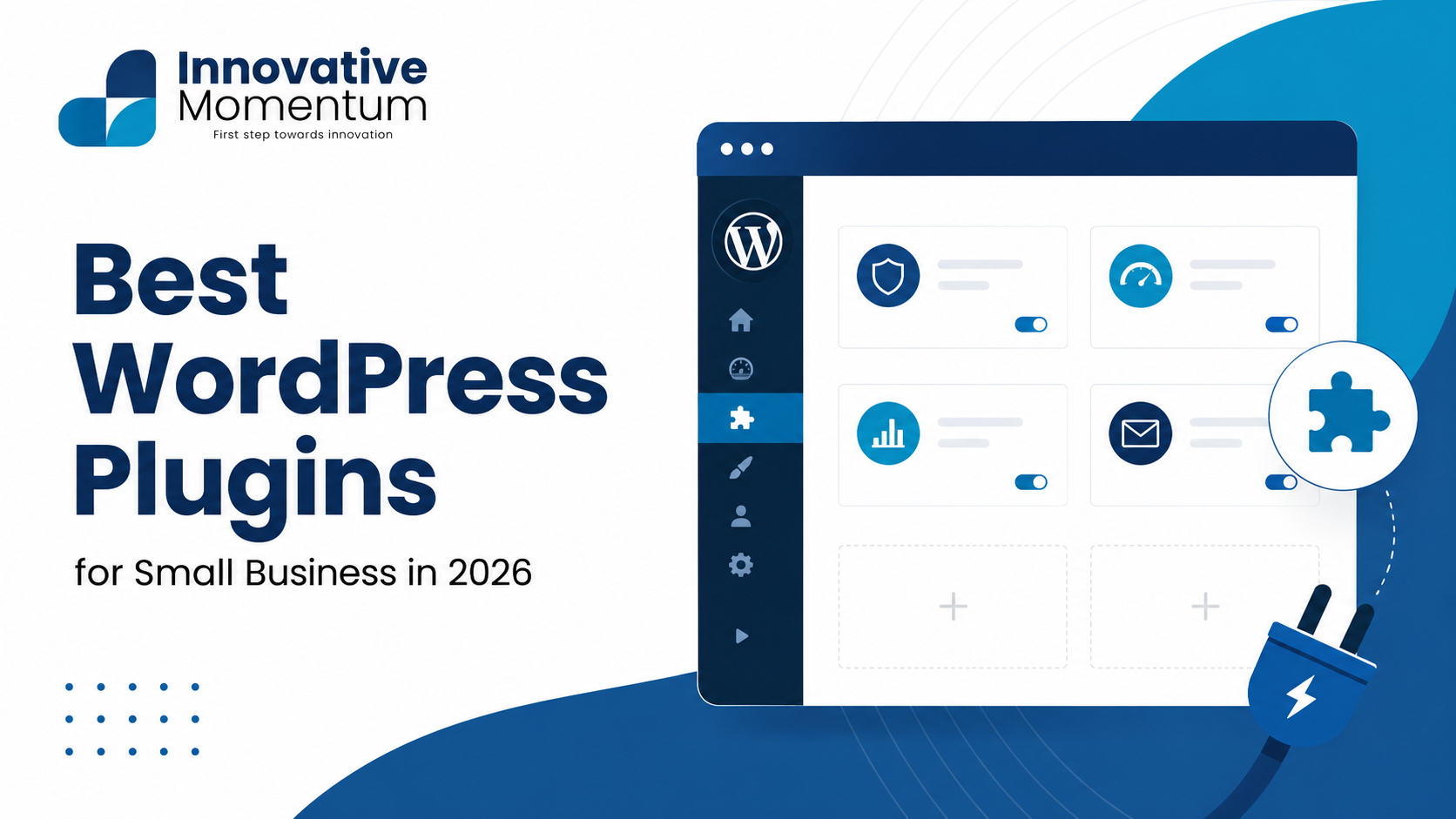
Key takeaway
Every small business WordPress site needs five plugin types: caching for speed, SEO, security, backups, and a contact form. Everything else is optional until you have a specific need.
WordPress has over 60,000 plugins in its official repository. The problem is not finding plugins — it is knowing which ones are worth installing, which are redundant, and which introduce security risks or performance problems that cost more than they deliver. A WordPress site loaded with 40 plugins runs slowly, has a larger security attack surface, and is harder to maintain than one with 12 carefully chosen, well-maintained plugins.
This guide covers the best WordPress plugins for small businesses in 2026, organized by function, with recommendations based on the specific needs of a typical small business WordPress site.
How to Evaluate a WordPress Plugin
Before installing any plugin, check four things: the active install count (above 10,000 is generally reliable), the last update date (anything not updated in over 12 months is a risk), the compatibility rating with your current WordPress version, and the star rating and recent reviews. A plugin with 100,000+ active installs, updated within the last 2 months, and rated 4.5+ stars is a reasonable choice. A plugin with 200 installs last updated 3 years ago is a security and compatibility risk regardless of how well it appears to solve your problem.
Plugin bloat affects site performance. Each plugin adds HTTP requests, database queries, and PHP execution time. Our guide on website speed optimization covers how plugins contribute to slow load times and how to audit your current plugin stack. Before installing a new plugin, ask: can I accomplish this with functionality that already exists in my theme, my hosting control panel, or a plugin I already have? Duplication is common and wastes resources.
Innovative Momentum
Want to implement these strategies for your business?
We help businesses grow with digital marketing, SEO, and AI-ready content strategies.
SEO Plugins
Every WordPress site needs an SEO plugin for meta tag management, XML sitemap generation, and schema markup. The two main options are Rank Math and Yoast SEO. Both are competent; the choice comes down to interface preference and specific feature requirements.
Our guide on Rank Math vs Yoast SEO provides a detailed feature comparison. The short version: Rank Math gives more features in the free tier (schema types, keyword tracking for multiple keywords per post, Google Search Console integration) while Yoast has a longer track record and larger community. Both produce excellent technical SEO output when configured correctly. Do not install both — they conflict.
For structured data beyond what the SEO plugin provides, and for custom schema markup for service pages and local business, our guide on schema markup for small businesses covers the implementation in WordPress.
Security Plugins
A WordPress security plugin handles the application-layer security that server-side security cannot: login protection, malware scanning, firewall rules, and file integrity monitoring. The main options:
- Wordfence Security: Comprehensive free tier covering firewall, malware scanner, login security (rate limiting, two-factor authentication), and real-time threat intelligence (30-day delayed on free). 5+ million active installs. Best all-round choice for most small businesses.
- Sucuri Security: Specializes in post-hack cleanup tools and website application firewall (WAF). The WAF requires a paid Sucuri subscription and operates at the DNS level, blocking malicious traffic before it reaches WordPress.
- Solid Security (formerly iThemes Security Pro): Strong brute force protection and hardening features. Good choice if Wordfence feels too heavy.
Install only one security plugin. Running multiple security plugins causes conflicts and can break site functionality.
Caching and Performance Plugins
A caching plugin generates static HTML versions of your pages, dramatically reducing server load and improving page load time. Without caching, every page request executes PHP, queries the database, and assembles the page dynamically — a process that can take 1-3 seconds. With caching, most requests are served from static files in milliseconds.
- WP Rocket (paid, ~£40/year): The most user-friendly caching plugin with comprehensive optimization features: page caching, browser caching, GZIP compression, image lazy loading, CSS/JavaScript minification and combination, and database optimization. Recommended for most small businesses that can absorb the small annual cost.
- W3 Total Cache (free): More complex to configure than WP Rocket but free. Requires more technical knowledge to configure correctly.
- LiteSpeed Cache (free): If your hosting runs LiteSpeed web server (Hostinger, LiteSpeed hosting), this plugin provides server-level caching with excellent performance. Only effective on LiteSpeed servers.
Note: many managed WordPress hosts include server-level caching that may make an additional caching plugin redundant. Check with your host before installing a caching plugin.
Image Optimization Plugins
Images are typically the largest contributors to page weight. An image optimization plugin compresses images automatically on upload, converts them to modern formats (WebP), and generates responsive image sizes. Without optimization, a single high-resolution image can be several megabytes — adding seconds to load time.
- ShortPixel Image Optimizer: Compresses JPEG, PNG, GIF, and WebP on upload. Free tier provides 100 image credits/month. Paid plans from £3-4/month for unlimited optimization. Also offers CDN.
- Smush: Free tier compresses images under 5MB. Popular and reliable. Pro version adds WebP conversion and CDN.
- Imagify: WebP conversion, bulk optimization, and responsive images. 20MB free per month.
Backup Plugins
Never rely solely on your host for backups. A dedicated backup plugin allows scheduled backups to off-site storage (Google Drive, Dropbox, Amazon S3) with restoration tools that you control. For our guide on why off-site backups are essential and how WordPress backups fit into overall site security, see our guide on WordPress website maintenance.
- UpdraftPlus: Most popular backup plugin with 3+ million active installs. Free tier includes scheduled backups to Google Drive, Dropbox, Amazon S3, FTP, and email. Configuration is straightforward. Restoration works reliably. The free version covers all essential needs for most small businesses.
- WP Time Machine: Simpler interface for beginners. Good free tier for basic backup needs.
Contact Form Plugins
Every service business website needs a contact form. The two most-used options:
- Contact Form 7 (CF7): Free, lightweight, and flexible. Used on over 5 million WordPress sites. No drag-and-drop interface — forms are configured via shortcodes and markup, which requires a small learning curve. Highly extendable via add-ons. Combined with Flamingo (free) to store form submissions in the WordPress database.
- WPForms Lite: Drag-and-drop form builder with an easier interface than CF7. Free tier is functional for basic contact forms. Paid version adds conditional logic, payment integration, and form abandonment tracking.
Analytics Plugins
Rather than adding GA4 code manually to your theme, an analytics plugin manages the tracking code and provides WordPress-specific enhancements:
- Site Kit by Google: Official Google plugin that connects WordPress to GA4, Google Search Console, PageSpeed Insights, and Google Ads from a single dashboard. Free and well-maintained. The easiest way to get GA4 and Search Console data visible within WordPress admin.
- MonsterInsights: GA4 integration with simplified reporting in WordPress admin. More user-friendly GA4 reports than Site Kit’s interface, but the free version is limited — the full suite requires a paid subscription (from approximately $100/year).
For the full GA4 setup and configuration, including conversion event tracking that analytics plugins do not handle automatically, see our guide on Google Analytics 4 for small businesses. For technical SEO across your WordPress installation, our technical SEO audit checklist covers the WordPress-specific settings that affect crawlability and rankings. For help configuring a lean, well-optimized WordPress plugin stack, contact Innovative Momentum.
Frequently Asked Questions
How many plugins should a WordPress site have?
There is no universal right number, but sites with fewer well-chosen plugins consistently outperform those with many poorly-chosen ones. A functional small business site can operate effectively with 10-15 plugins. Beyond 25-30, the performance and maintenance burden becomes significant. Audit your plugin list quarterly: remove anything inactive, anything with a function duplicated by another plugin, and anything not updated in over 12 months.
Are free WordPress plugins safe to use?
Plugin safety depends on the plugin itself, not whether it is free or paid. Many of the most trusted plugins (Contact Form 7, Wordfence free, UpdraftPlus free) have free tiers with excellent security records. Premium pricing does not guarantee security quality. Evaluate plugins by their maintenance record, active install count, and community reputation — not their price. The WordPress repository’s “Last Updated” date is the most important security indicator for any plugin.
What is the difference between a plugin and a theme function?
If functionality is truly specific to your website’s design and would need to change when you change themes, it belongs in a theme (or child theme). If functionality should persist regardless of which theme is active — contact forms, SEO settings, backups, security — it belongs in a plugin. This distinction matters for maintenance: plugin updates are managed separately from theme updates, and switching themes does not remove plugin functionality. Adding content-type registrations, site-wide SEO settings, and security configurations to a theme creates fragility that is costly to untangle later.
Page Builder Plugins
Page builder plugins provide drag-and-drop visual editing of WordPress pages and posts without coding. The main options for small businesses:
- Elementor: The most popular page builder with 10+ million active installs. Free tier is functional for most small business needs; Elementor Pro adds advanced widgets, popup builder, WooCommerce integration, and theme builder functionality. Note that Elementor adds significant CSS and JavaScript to pages — configure it with a caching plugin to mitigate performance impact.
- Bricks Builder: Growing alternative to Elementor, favored for cleaner code output and better performance characteristics. Lower learning curve overhead than Elementor for developers. Paid only (~£60 one-time purchase per site).
- Gutenberg (WordPress Block Editor): WordPress’s native block editor has evolved significantly and now provides adequate flexibility for most small business pages without a third-party page builder. Using Gutenberg avoids the performance overhead of an additional page builder plugin and simplifies the dependency chain. For straightforward business sites, Gutenberg may eliminate the need for a page builder entirely.
Important: if you are using the default WordPress block editor (Gutenberg) effectively, adding a page builder plugin creates duplication and conflict. Choose one approach and standardize on it across the site.
WooCommerce for Small Business E-Commerce
For small businesses selling products or services online, WooCommerce is the standard WordPress e-commerce solution with 7+ million active installs. WooCommerce is free and provides: product management, shopping cart, checkout, payment processing (Stripe, PayPal, and many others), order management, and basic inventory tracking.
WooCommerce’s extensibility is its primary advantage: hundreds of extensions add subscription billing, booking and appointment systems, membership access, digital product delivery, and advanced shipping rules. The main drawback is performance — WooCommerce adds significant database overhead, and a WooCommerce store requires more aggressive caching and optimization than a standard brochure site. Combine WooCommerce with WP Rocket, a WooCommerce-compatible caching configuration (WP Rocket has built-in WooCommerce support), and image optimization to maintain good load times.
For service businesses offering booking-based services (consultations, appointments, courses), WooCommerce with the WooCommerce Bookings extension, or a dedicated booking plugin like Amelia or Bookly, provides the online booking infrastructure that reduces admin time while maintaining the payment and scheduling functionality needed. For overall site performance across all plugins including WooCommerce, see our guide on website speed optimization. For ongoing site maintenance including plugin updates, see our WordPress maintenance guide. For help selecting and configuring the right WordPress plugin stack for your business, contact Innovative Momentum.
Plugin Update Management and Security
Outdated plugins are the most common entry point for WordPress site compromises. A vulnerability in a popular plugin is typically exploited within 24-72 hours of public disclosure — before most site owners have applied the available patch. Automatic updates for plugins (available in WordPress Settings → Automatic Updates) reduce this exposure window for minor and patch releases without requiring manual intervention.
The risk of automatic updates is rare plugin conflicts with major releases. The practical approach: enable automatic updates for security releases and minor versions; review major version updates manually before applying. Our guide on WordPress website maintenance covers a complete update and backup protocol that balances security patching speed against the risk of update-related site breaks. The protocol: maintain an off-site backup (UpdraftPlus) that runs before each update cycle, apply updates in a staging environment if available, verify the live site after updates. For help managing WordPress plugin security and performance, contact Innovative Momentum.
For any help navigating WordPress plugin choices and configuration for your specific site, see our technical SEO audit checklist which covers the WordPress settings that affect crawlability alongside the plugin stack.

Keep reading
Related insights
No comments yet. Be the first to share your thoughts.